Create TikZ document

Insert code
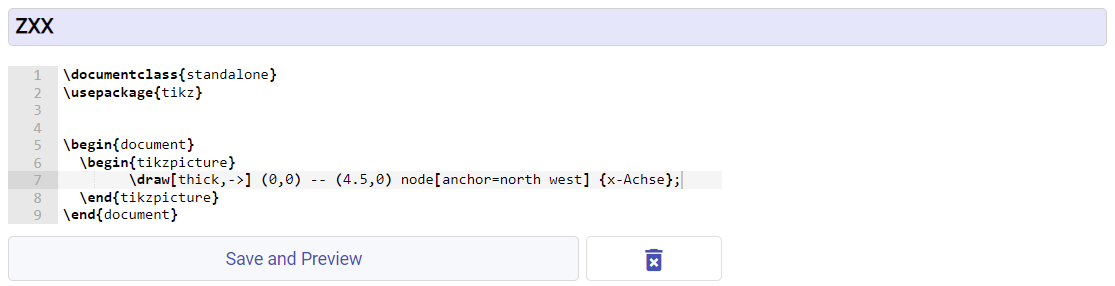
Insert different code für different languages - use zxx if the image is the same for all languages
usetikzlibrary
Here is a list of available packages texlive-pictures, which can be include with \usetikzlibrary{<package name>}
Save, Compile and Preview
After completion, create the image by clicking the "Save and Preview" button. You can see a preview on the right-hand side.
Template
\documentclass{standalone}
\usepackage{tikz}

\begin{document}
    \begin{tikzpicture}
        ...
    \end{tikzpicture}
\end{document}
Template, if Chinese characters used
\documentclass{standalone}
\usepackage{tikz}
\usepackage{CJKutf8}

\begin{document}
    \begin{CJK*}{UTF8}{gbsn}
        \begin{tikzpicture}
            ...
        \end{tikzpicture}
    \end{CJK*}
\end{document}
Use a TikZ image in an article or problem
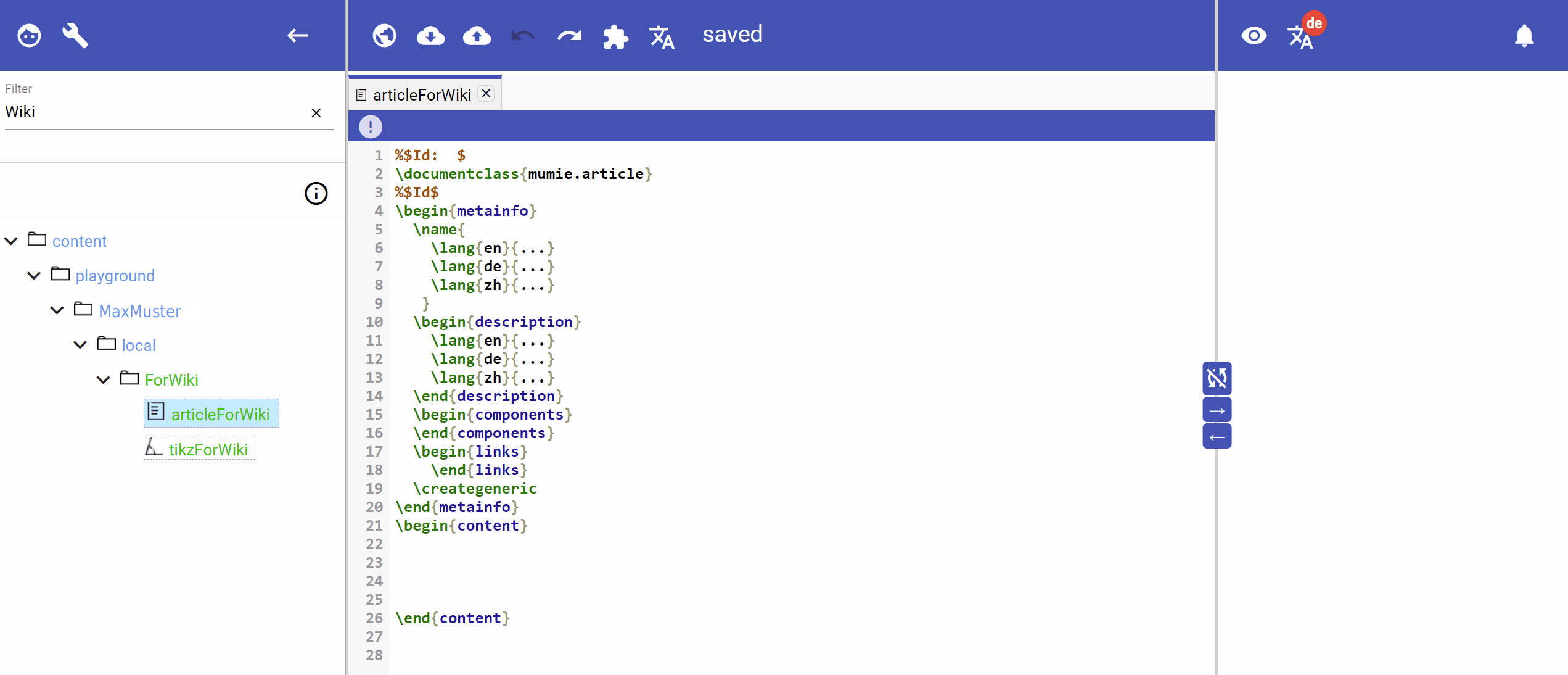
To embed an image, proceed in the same way as for other images. Drag and drop the TikZ file from the left file tree into the article or problem. WebMiau will create all references for you.
Before:
After:
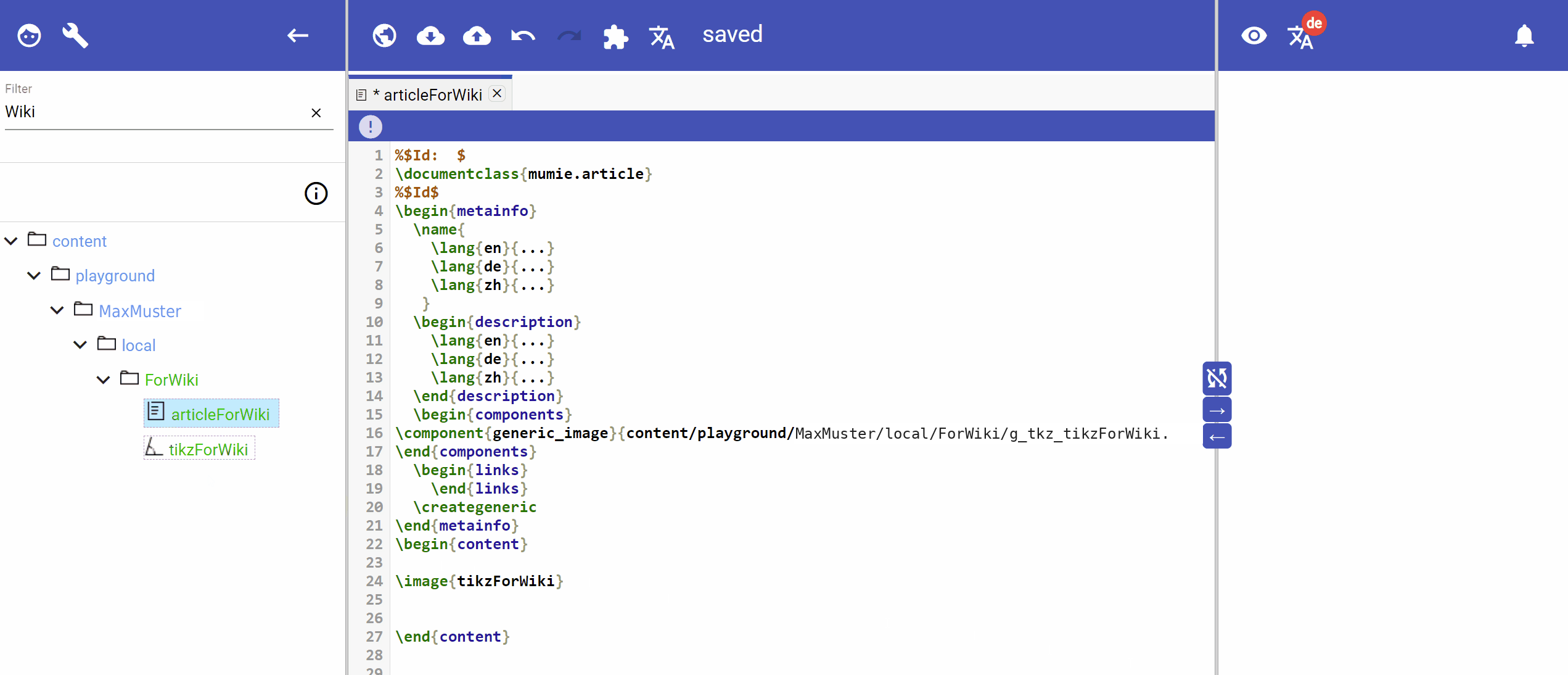
Just as with the classic images, you can influence the display with the optional parameters for width and height.
\image[width][height]{<id>} for example \image[400][300]{image1}